How to Use Manage Upgrades in Marketing Hub
Manage Upgrades is a centralized tool within Marketing Hub that allows you to view and manage all of your property upgrades in one place.
With Manage Upgrades, you can:
- View all active and unassigned upgrades
- Assign unassigned upgrades to eligible listings
- Swap upgrades between listings
- Review upgrade renewal information
- Turn off auto-renewal for eligible month-to-month upgrades
The page is designed to provide greater visibility and control over your upgrade inventory, especially for sellers managing multiple properties.
Accessing Manage Upgrades
- Sign in to Marketing Hub.
- In the left-hand navigation menu, click Upgrades.
- The Manage Upgrades page will open.
Note: Upgrade Manager only appears for accounts that currently have upgrades.
Understanding Upgrade Counters
At the top of the page, you’ll see upgrade counters organized by upgrade type.
Each counter displays two numbers:
- Active Upgrades – The number of upgrades currently applied to listings that are live on the Land.com network.
- Total Purchased Upgrades – The total number of upgrades purchased for that tier.

What if the numbers don’t match?
If the number of active upgrades is lower than the total purchased count, you have one or more unassigned upgrades.
This can happen when:
- An upgraded property is marked as sold.
- A listing is taken off market.
- An upgrade is removed from a listing before being reassigned.
These upgrades remain available and can be assigned to another eligible property.
Viewing Your Upgrades
Below the counters is a table displaying all of your upgrades.

Each row represents a single upgrade and includes information such as:
- Upgrade ID
- Upgrade tier (Gold, Platinum, or Diamond)
- Renewal date
- Current listing assignment
If an upgrade is not assigned to a property, it will be clearly labeled as Unassigned.
Searching and Filtering
Manage Upgrades provides several ways to quickly find specific upgrades.
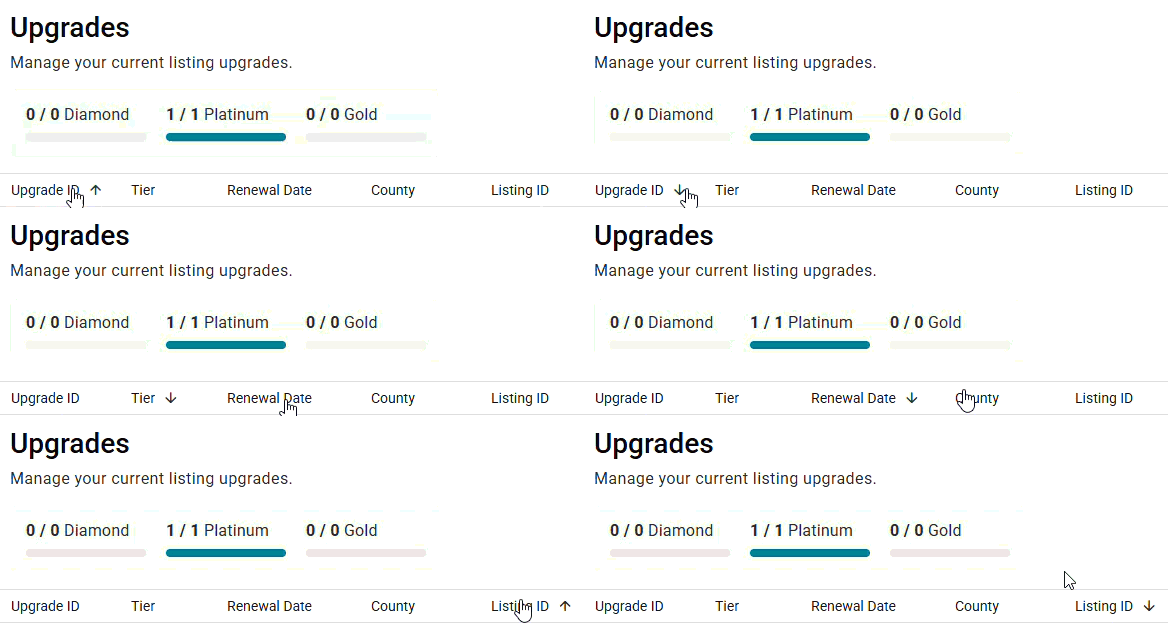
Sort Columns
Click any column header to sort the table.
For example, you can sort by:
- Upgrade ID
- Tier
- Renewal Date
- Assigned Listing
Use Search and Filters
Use the search field to narrow the list and quickly locate upgrades that match specific listings, IDs, or other details.
Assigning an Unassigned Upgrade
Unassigned upgrades always appear at the top of the table, making them easy to identify.
To assign an upgrade:
- Locate the unassigned upgrade.
- Click Assign.
- Select an eligible property from the assignment window.
- Confirm your selection.
The upgrade will immediately be applied to the selected listing.
Swapping an Upgrade to Another Listing
You can move most upgrades from one active listing to another eligible listing that does not already have an upgrade.
To swap an upgrade:
- Find the upgrade you want to move.
- Click Swap.
- Select the listing that should receive the upgrade.
- Confirm the change.
The upgrade will be transferred to the selected property.
Diamond Upgrade Exception
Diamond upgrades cannot be swapped through Marketing Hub.
If you need to move a Diamond upgrade, please contact your Account Team for assistance.
Turning Off Auto-Renewal
Some month-to-month upgrades can be managed directly from the Manage Upgrades page.
To disable auto-renewal:
- Locate the eligible upgrade.
- Choose the option to manage renewal settings.
- Follow the billing cancellation workflow.
Once auto-renewal is turned off, the upgrade will remain active until the end of the current billing period.
Contract Upgrades
Upgrades purchased under contract cannot be canceled online, contact your sales team to make changes .
Frequently Asked Questions
Why do I have an unassigned upgrade?
An upgrade becomes unassigned when it is no longer attached to an active listing, typically because a property was sold or removed from the market.
Can I assign an upgrade to any listing?
Upgrades can only be assigned to eligible active listings.
Can I swap Diamond upgrades?
No. Diamond upgrades require assistance from your Account Team.
Can I cancel all upgrades online?
Only eligible month-to-month upgrades can have auto-renewal turned off online. Contract upgrades still require a written request.
Need More Help?
Manage Upgrades gives you greater visibility into your upgrade inventory and makes it easier to maximize the value of every upgrade you’ve purchased. Future enhancements will continue to improve upgrade management and provide easier access to upgrade purchasing options directly within Marketing Hub.